Stream overlays,designed once.
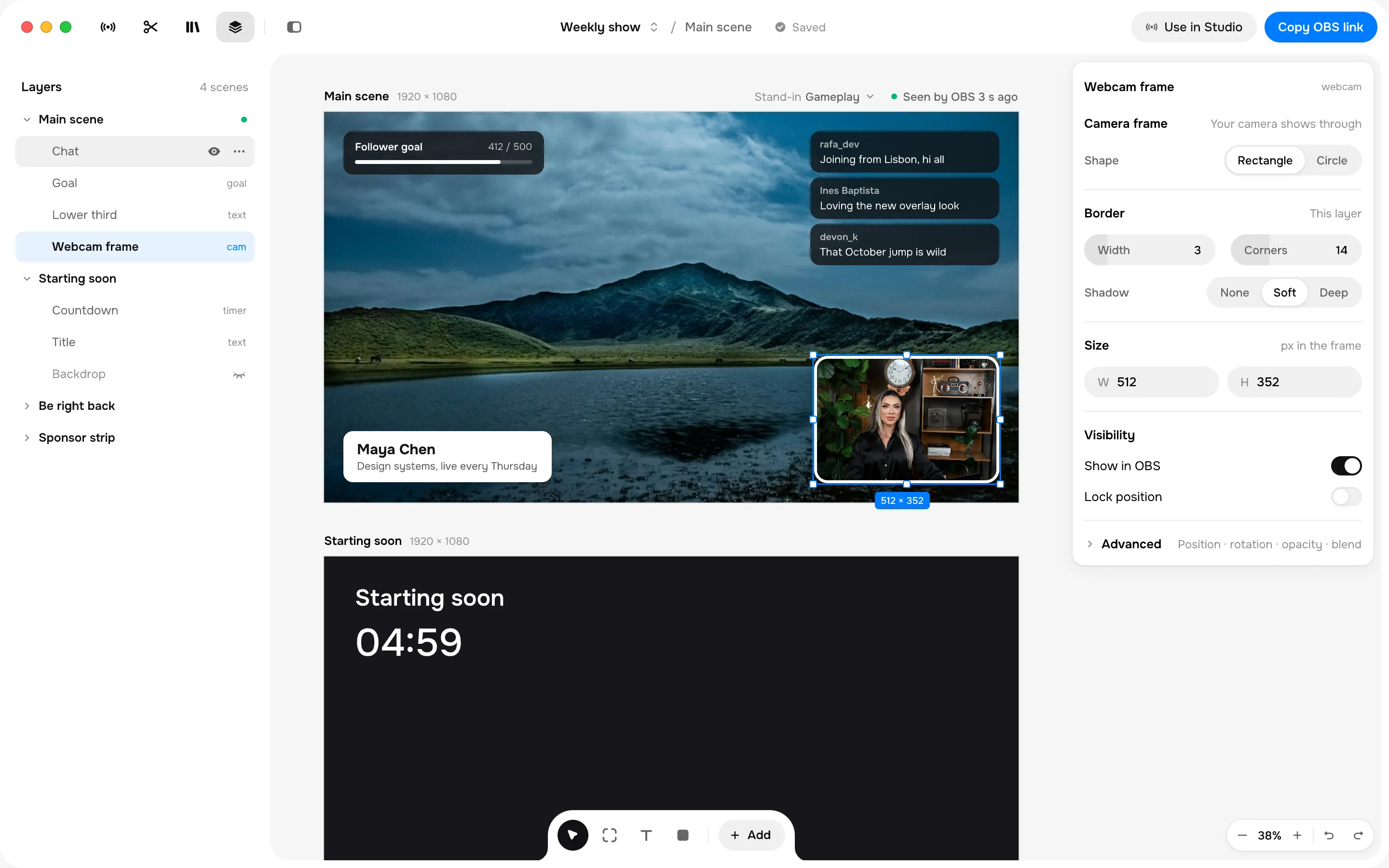
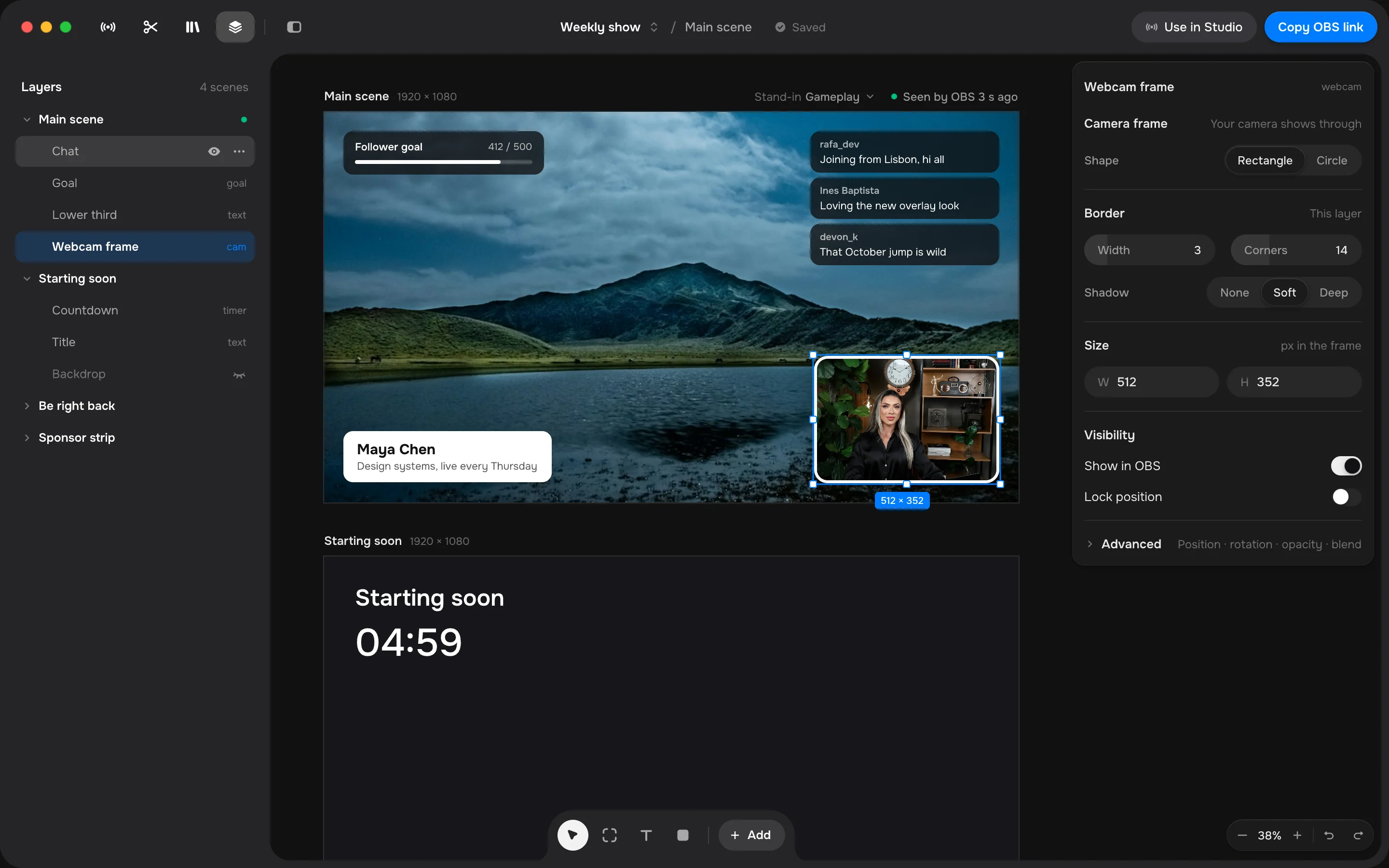
Lay out a goal bar, chat, a camera frame and a countdown on a 1920 × 1080 canvas. Use them in the One Rec studio, or copy the browser source link into OBS.
How it works
Design, publish, go live.
Start from a scene
Pick a preset such as Starting soon, Live gameplay or Just Chatting, or start from an empty canvas.
Add your elements
Add text, boxes, images, video, a camera frame, timers, progress bars and chat. Double-click any text to type on the canvas.
Use it live
Pick the overlay in the One Rec studio, or copy its browser source link into OBS. OBS gets a transparent scene.
FAQ
Questions
- Do overlays work in OBS?
- Yes. Each overlay has a browser source link. Add it as a Browser source in OBS and the overlay sits on top of your scene with a transparent background.
- How many elements can an overlay have?
- Up to 20 on Free and 100 on Creator. Pro, Team and Webinar have no limit.
- Do I need the desktop app?
- No. The overlay editor runs in the browser as well as in the desktop app. You need a One Rec account to save overlays.