Feature · Backgrounds
Put your screen on a backdrop.
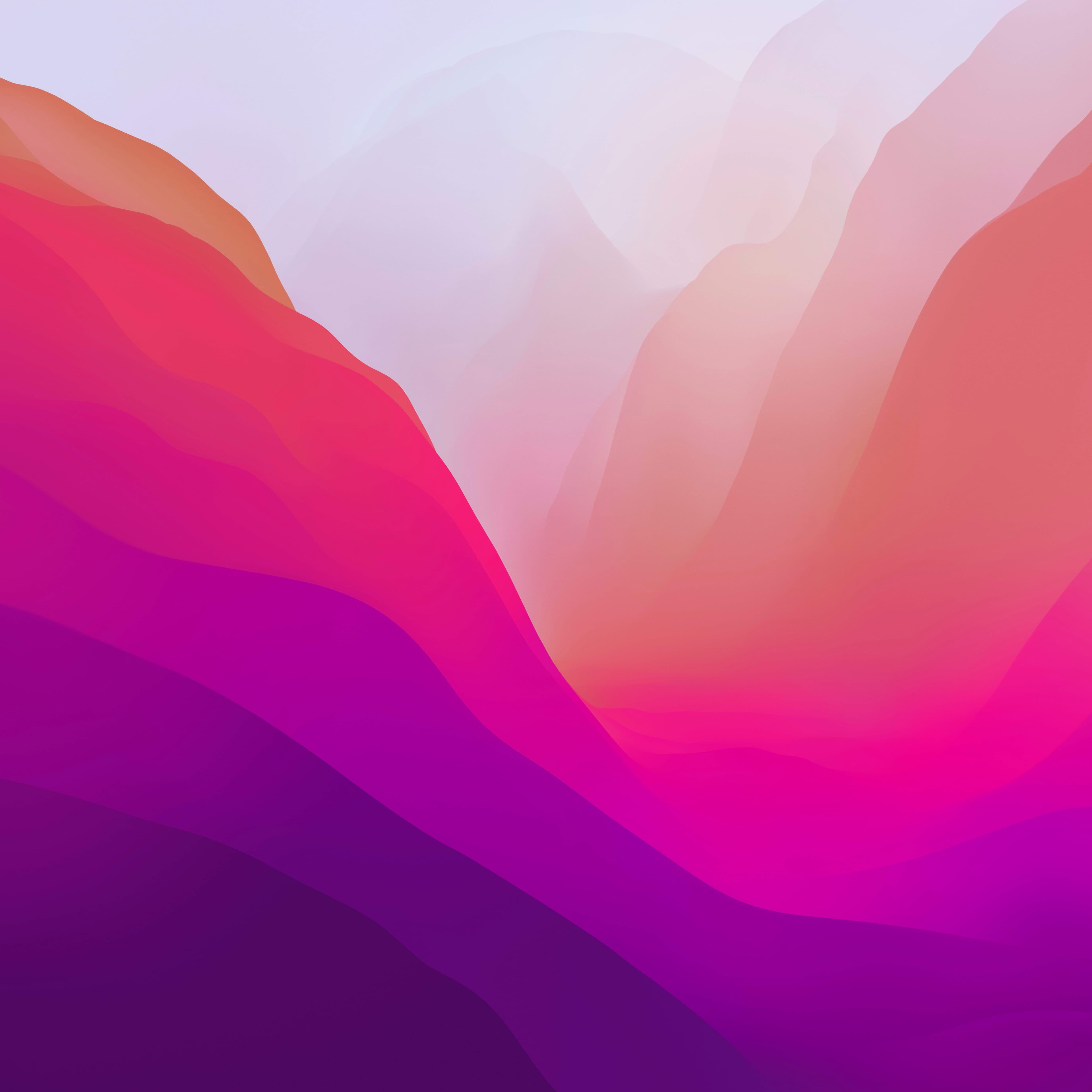
Give your screen recording a background: a wallpaper, a gradient or your own image, with padding, rounded corners and a shadow.
What you get
What it does for you.
- 01
Wallpapers and gradients
13 wallpapers and 21 gradients ship with the app, ready to use.
- 02
Your own image
Upload a brand image or a photo as the background. Custom images need a One Rec account.
- 03
Padding, radius and shadow
Set how much backdrop shows around the recording, how round the corners are and how strong the shadow is.
How it works
From take to finished video.
- 01
Open the editor
Backgrounds are set in the editor after you record.
- 02
Pick a background
Choose a wallpaper or gradient, or upload an image. Then set padding, corner radius and shadow.
- 03
Pick an aspect ratio and export
Choose 16:9, 9:16, 1:1 or another ratio. The background fills the frame in the export.
FAQ
Questions, answered.
Can I change the background after recording?
Yes. The background is part of the edit, so you can swap or remove it any time before export.
Do backgrounds affect video quality?
The background is drawn at your export resolution. With padding, the recording takes up a little less of the frame, so keep padding modest when small text matters.
Try it on your next take.
Free for macOS, Windows and Linux, with no time limit on recordings.